
How To Recover Saved Password on iPad / iPhone / iPod Safari iOS 7
Steps on How To Recover Saved Password on iPad / iPhone / iPod Safari iOS 7
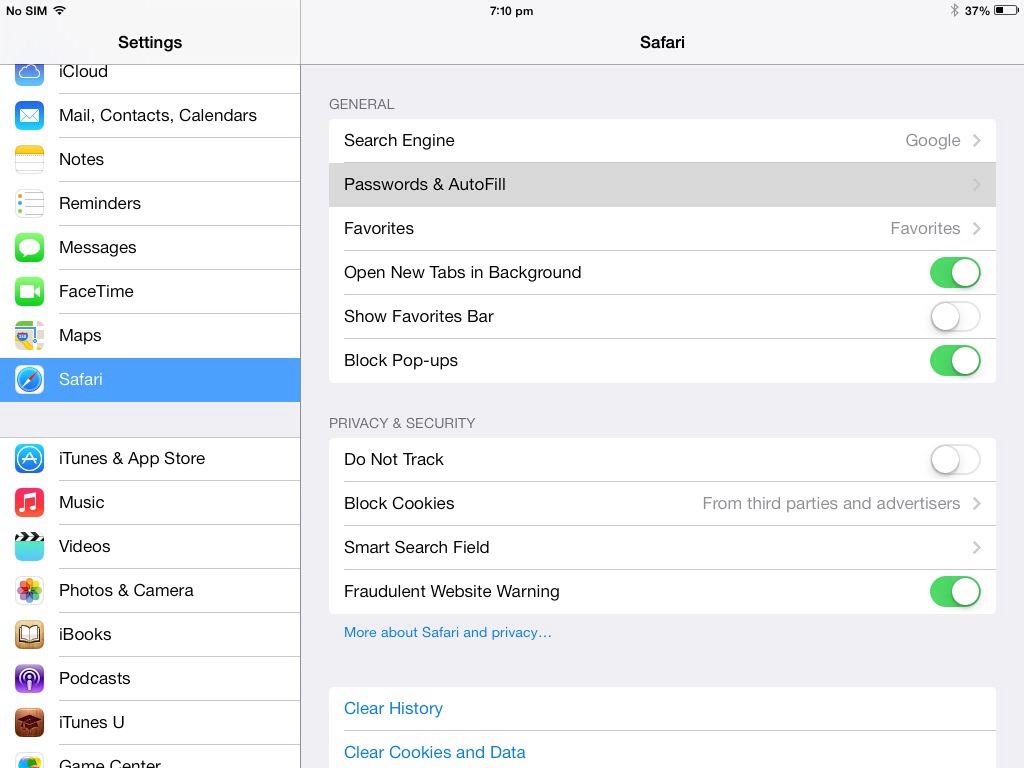
Step 1: Open Settings then select Safari. Click on Passwords & AutoFill.
Step 2: Choose Saved Passwords then select the website address you want to restore your password from.
[postad]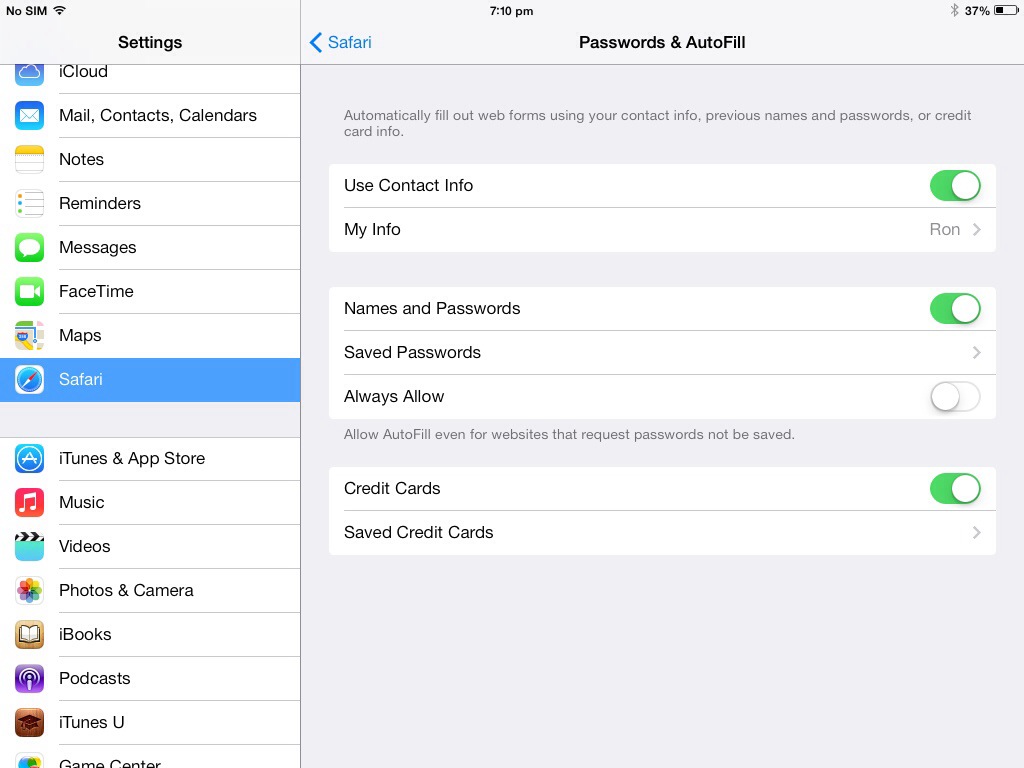
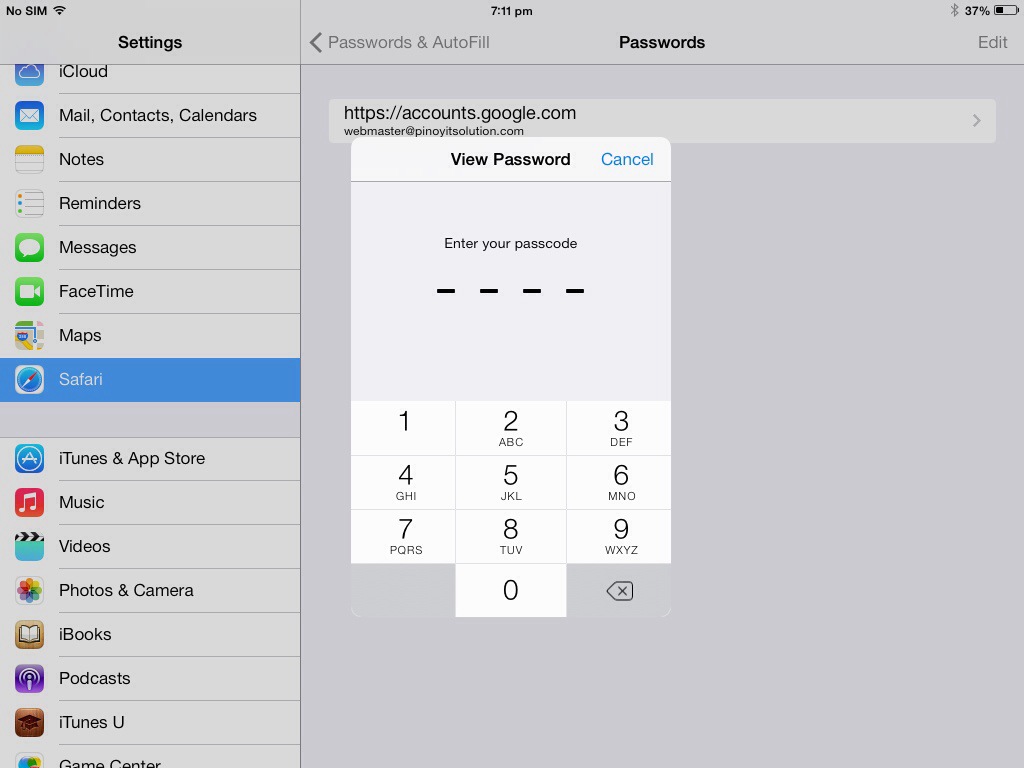
Step 3: Enter your passcode and your account information including your password will be displayed on the next screen.
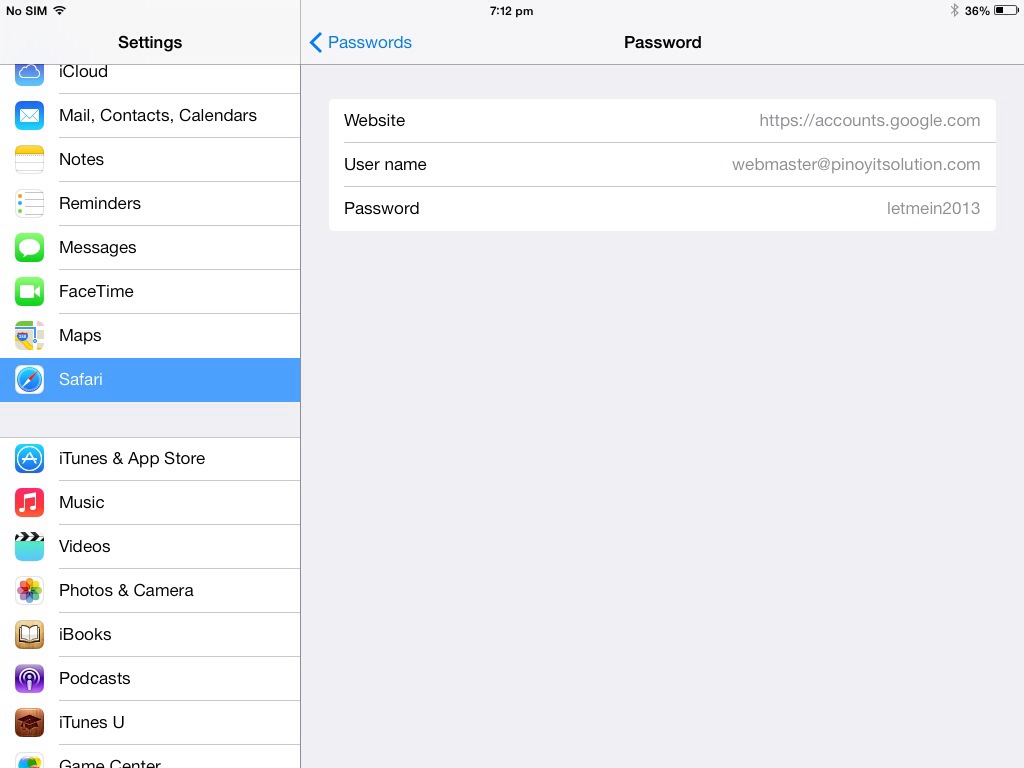
Congrats, you’ve just recovered your password. Enjoy!
Video Instructions:
iOS7
editor's pick
latest video
 For Lighthouse Baptist Church
news via inbox
Nulla turp dis cursus. Integer liberos euismod pretium faucibua
One Comment
Comments are closed.
you might also like
http://www.google.com/finance/converter
select currency
http://www.google.com/finance/converter?&from=SGD&to=USD
http://www.google.com/finance/converter
select currency
http://www.google.com/finance/converter?&from=SGD&to=USD
http://www.google.com/finance/converter
select currency
http://www.google.com/finance/converter?&from=SGD&to=USD

I wish it had. It looked so promising. Names and Passwords only stores info for websites. I have an app on my iPhone, Passwords Plus, that doesn’t go to a website. I broke the screen when I took a bad fall and then fumble fingered the password enough that it locked me out and I can’t find any tool on the web to recover it.