
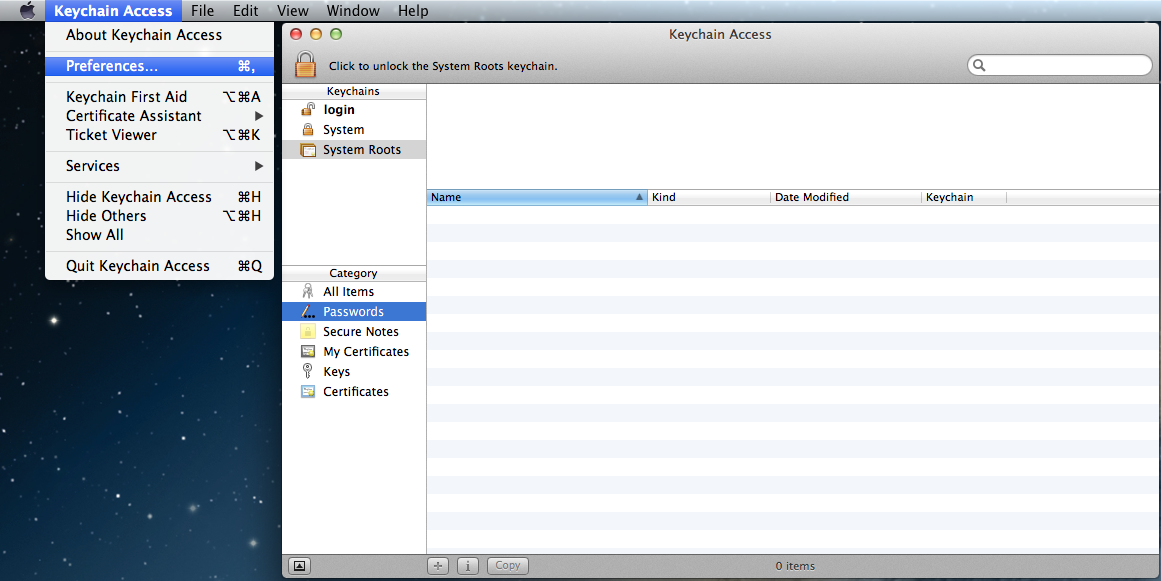
How to Lock Your Screen / Switch User on MAC OS X
1.Go to Launch Pad/Applications/Utilities. Select “Keychain Access”

[postad]
2. Under Keychain Access menu, select Preferences.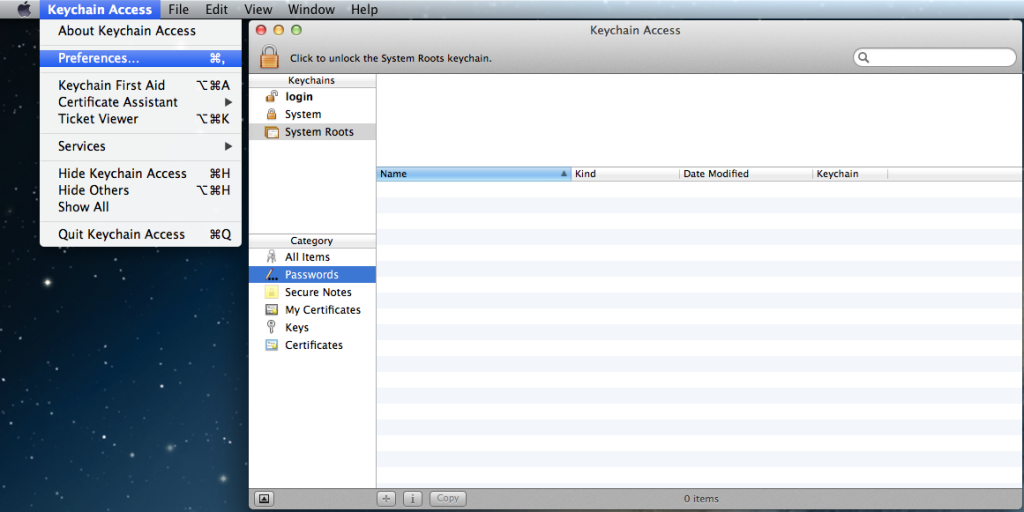
3. TIck the “Show Status in Menu Bar” option.

4. Notice that you will ow see a lock icon in the menu bar.

Features:
- Lock the screen – This will enable the screen saver, Will ask for password to unlock the screen).
- Lock / Unlock Keychain. – Enable / Disable user to access Keychain. This is where you can store your passwords.
- Open Security Preferences – Opens up your Security & Privacy Settings for your MAC. You can also set your screen saver startup time here.
- Open Keychain Access. Will open up your Keychain Application which contains all the accounts and passwords saved on your MAC.
editor's pick
latest video
 For Lighthouse Baptist Church
Created by: Paula Aduna
news via inbox
Nulla turp dis cursus. Integer liberos euismod pretium faucibua
One Comment
Comments are closed.
you might also like
http://www.google.com/finance/converter
select currency
http://www.google.com/finance/converter?&from=SGD&to=USD
http://www.google.com/finance/converter
select currency
http://www.google.com/finance/converter?&from=SGD&to=USD
http://www.google.com/finance/converter
select currency
http://www.google.com/finance/converter?&from=SGD&to=USD

[…] How to Lock Your Screen / Switch User on MAC OS X » Pinoy IT Solution […]