

How to Add Time Capsule to an Existing Wireless Network

then Airport Utility

2. Select Time Capsule from Other Airport Base Station

3. Time Capsule will prompt you to create a new network, press other options

4. Select Add to existing network
5. Select your existing network

6. Name your Time Capsule and set password

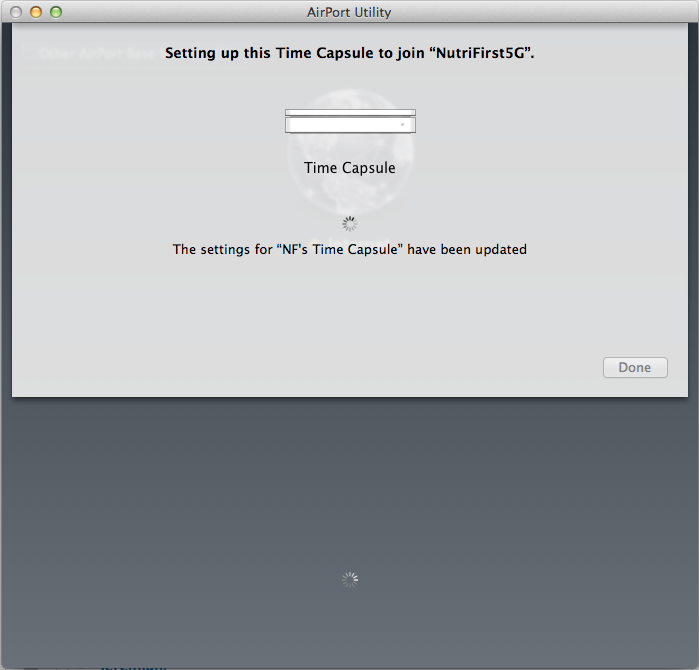
6. Wait for setup to update settings and complete


Are you using OSX 10.9 Mavericks?
Try this tutorial instead, https://pinoyitsolution.com/2013/12/07/how-to-add-airport-time-capsule-to-existing-network-on-osx-10-9-mavericks/
editor's pick
latest video
 For Lighthouse Baptist Church
news via inbox
Nulla turp dis cursus. Integer liberos euismod pretium faucibua
3 Comments
Comments are closed.
you might also like
http://www.google.com/finance/converter
select currency
http://www.google.com/finance/converter?&from=SGD&to=USD
http://www.google.com/finance/converter
select currency
http://www.google.com/finance/converter?&from=SGD&to=USD
http://www.google.com/finance/converter
select currency
http://www.google.com/finance/converter?&from=SGD&to=USD

In Mavericks this does not work.
After I choose to add the Time Capsule to an existing network, and I press Next, I get the screen “Create a new network”.
Hi Nicholas,
Yes the steps made on this tutorial might be different from what you are having when you use Mavericks, I was using Mountain Lion back then when I did this. Don’t worry I will try this out and will update you soon. Thanks for your feedback!
Hi Nicolas, I have updated this tutorial, please refer to this link. https://pinoyitsolution.com/2013/12/07/how-to-add-airport-time-capsule-to-existing-network-on-osx-10-9-mavericks/
Thank you.