

How to Unzip Multiple .gz Files Using NodeJS and ZLib on Windows 10
Steps on how to uncompress multiple .gz files using NodeJS and zlib:
1. Import fs and zlib.
var zlib = require(‘zlib’);
var fs = require(‘fs’);
2. Create function to that will decompress files using zlib.createUnzip();.
function decompress(inFilename, outFilename) {
var unzip = zlib.createUnzip();
var input = fs.createReadStream(inFilename);
var output = fs.createWriteStream(outFilename);input.pipe(unzip).pipe(output);
}
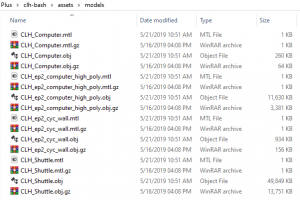
3. Call function as many times as you need. Please take note that my .gz files are located on assets/models/ folder.
decompress(‘assets/models/CLH_Computer.mtl.gz’, ‘assets/models/CLH_Computer.mtl’);
decompress(‘assets/models/CLH_Computer.obj.gz’, ‘assets/models/CLH_Computer.obj’);
decompress(‘assets/models/CLH_ep2_computer_high_poly.mtl.gz’, ‘assets/models/CLH_ep2_computer_high_poly.mtl’);
decompress(‘assets/models/CLH_ep2_computer_high_poly.obj.gz’, ‘assets/models/CLH_ep2_computer_high_poly.obj’);
decompress(‘assets/models/CLH_ep2_cyc_wall.mtl.gz’, ‘assets/models/CLH_ep2_cyc_wall.mtl’);
decompress(‘assets/models/CLH_ep2_cyc_wall.obj.gz’, ‘assets/models/CLH_ep2_cyc_wall.obj’);
decompress(‘assets/models/CLH_Shuttle.mtl.gz’, ‘assets/models/CLH_Shuttle.mtl’);
decompress(‘assets/models/CLH_Shuttle.obj.gz’, ‘assets/models/CLH_Shuttle.obj’);
4. Put it all together in a .js file and save it as unzip.js on your root folder. If you plan to put everything in one location, just remove assets/models/ from the code.
var zlib = require(‘zlib’);
var fs = require(‘fs’);function decompress(inFilename, outFilename) {
var unzip = zlib.createUnzip();
var input = fs.createReadStream(inFilename);
var output = fs.createWriteStream(outFilename);input.pipe(unzip).pipe(output);
}decompress(‘assets/models/CLH_Computer.mtl.gz’, ‘assets/models/CLH_Computer.mtl’);
decompress(‘assets/models/CLH_Computer.obj.gz’, ‘assets/models/CLH_Computer.obj’);
decompress(‘assets/models/CLH_ep2_computer_high_poly.mtl.gz’, ‘assets/models/CLH_ep2_computer_high_poly.mtl’);
decompress(‘assets/models/CLH_ep2_computer_high_poly.obj.gz’, ‘assets/models/CLH_ep2_computer_high_poly.obj’);
decompress(‘assets/models/CLH_ep2_cyc_wall.mtl.gz’, ‘assets/models/CLH_ep2_cyc_wall.mtl’);
decompress(‘assets/models/CLH_ep2_cyc_wall.obj.gz’, ‘assets/models/CLH_ep2_cyc_wall.obj’);
decompress(‘assets/models/CLH_Shuttle.mtl.gz’, ‘assets/models/CLH_Shuttle.mtl’);
decompress(‘assets/models/CLH_Shuttle.obj.gz’, ‘assets/models/CLH_Shuttle.obj’);
5. Call the unzip.js file by running the following command on your command line.
node unzip.js
There you have it. Hope that helps.
You can get the full code from here too. https://gist.github.com/ronknight/30052b89edf4a13bf8351bab9e3fe819
editor's pick
latest video
 For Lighthouse Baptist Church
Created by: Paula Aduna
news via inbox
Nulla turp dis cursus. Integer liberos euismod pretium faucibua
you might also like
http://www.google.com/finance/converter
select currency
http://www.google.com/finance/converter?&from=SGD&to=USD
http://www.google.com/finance/converter
select currency
http://www.google.com/finance/converter?&from=SGD&to=USD
http://www.google.com/finance/converter
select currency
http://www.google.com/finance/converter?&from=SGD&to=USD
